

TL;DR
- Scout Vision handles player-view switching, Scout Cinematic adds moving camera shots, and Scout Predict supplies round and match predictions.
- Use the modules that suit your broadcast, whether you cast matches yourself or work with a production team.
- Keep control of the picture with manual takeover when you want a specific view.
- Scout AI is available with Personal, Professional, and Enterprise plans, each with a monthly hours budget.
What is Scout AI?
LHM Scout AI brings automatic observing, cinematic camera movement, and result predictions to CS2 broadcasts. It works inside LHM, taking repeated camera inputs off your hands so you can give more attention to the commentary and presentation.
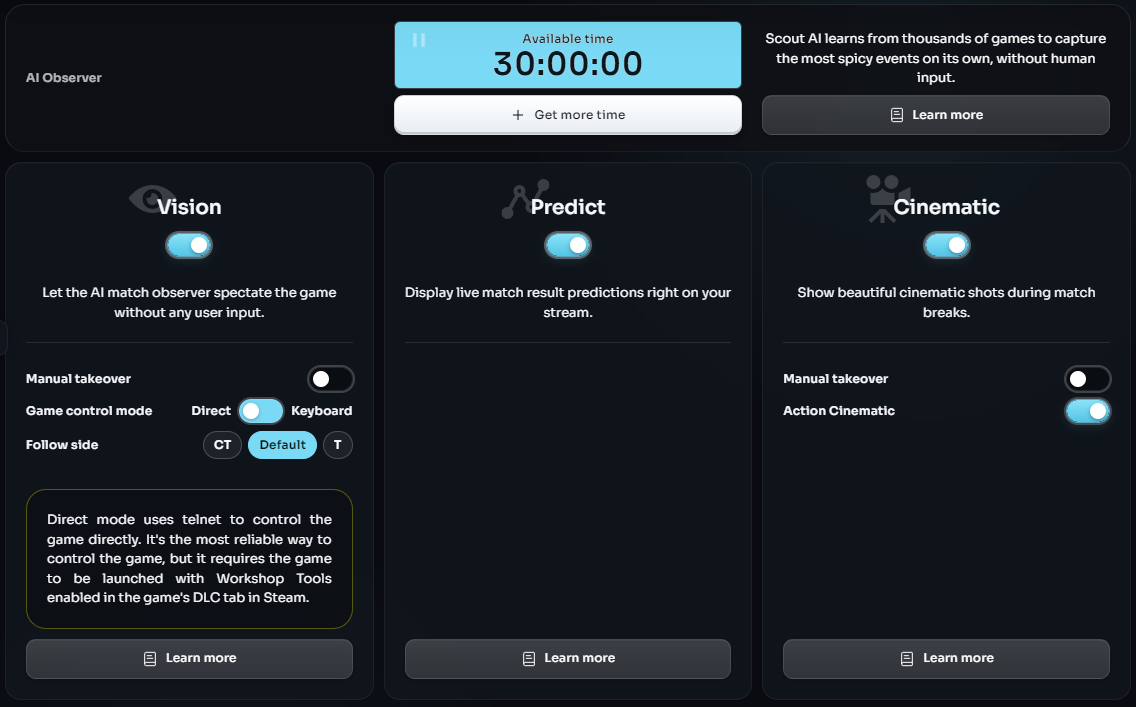
For a CS2 observer, choosing the next player view is a constant part of covering a match. Scout can handle those changes for you, add wider views of the action, or supply predictions for your HUD. You choose which parts of the broadcast you want it to assist with.
Who is Scout AI for?
Scout suits broadcasters who want to spend less time operating the spectator camera and more time presenting the match.
Casters running their own streams can use an automatic CS2 observer to handle regular player-view changes while they commentate. That leaves fewer camera inputs to manage alongside the conversation.
Community tournament organizers can add automated observing and cinematic views to their broadcasts without asking one person to make every camera choice manually.
Teams with a dedicated observer can use Scout for selected stretches of a match. An observer might let Vision follow regular play, then take control for a tactical explanation or a producer's requested shot.
The choice can vary from one show to another. You might want automated observing throughout a community match, or only cinematics and predictions alongside manual observing.
What can Scout do during a CS2 match?
Scout has three main modules. Each changes a different part of what the audience sees.
Scout Vision: automatic player-view selection
Scout Vision handles automatic camera switching in CS2. It analyzes match information and uses predictions about developing events to select the spectated player's point of view, or POV.
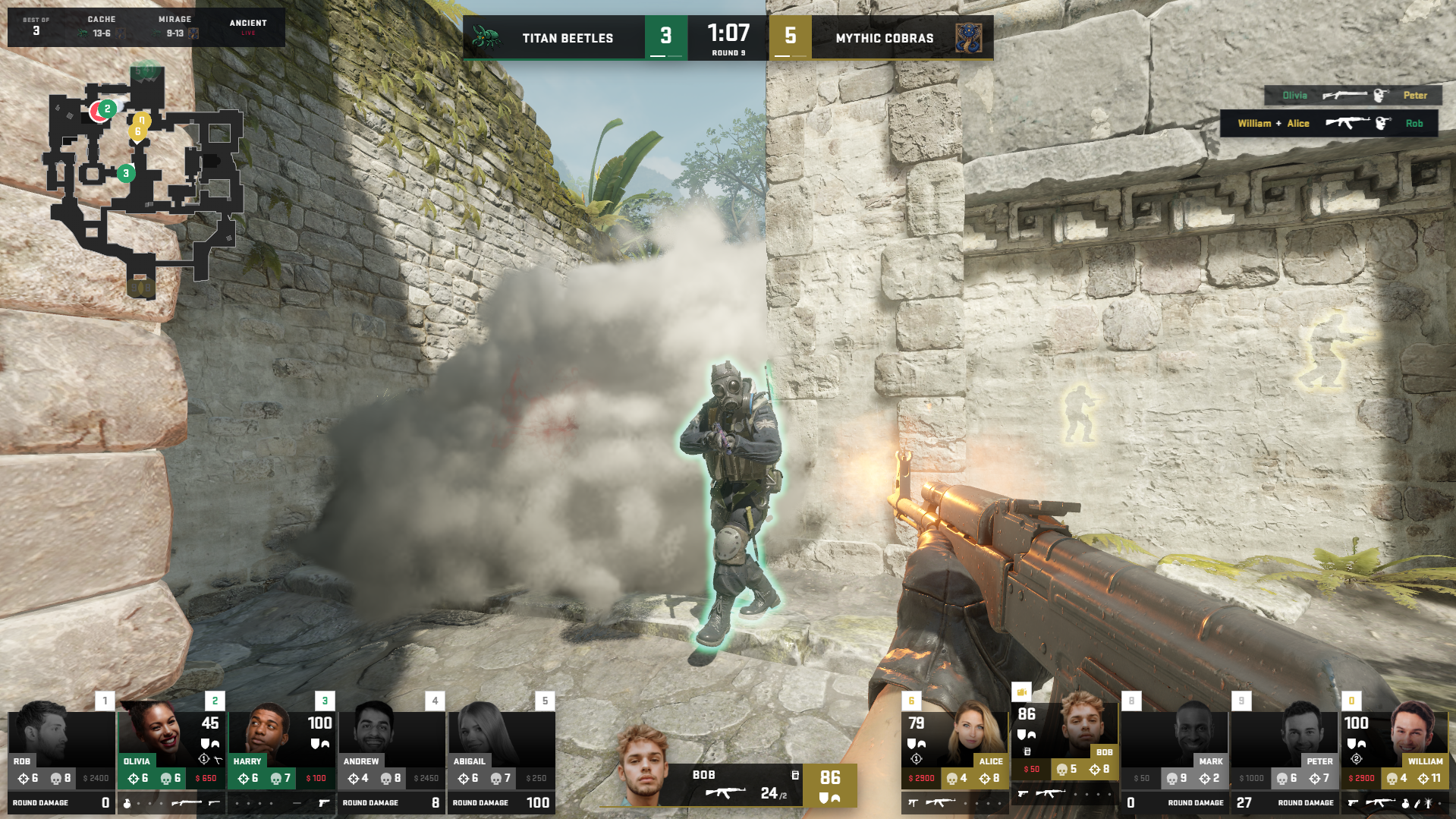
The audience sees the match through the selected player's perspective as Vision changes the view. You can follow the broadcast and commentary without choosing every player switch yourself.
This is the observing part of Scout. It aims to follow developing action, while leaving you the option to hold a particular view when the show calls for it.
Scout Cinematic: another perspective on the action
Scout Cinematic adds camera paths: moving shots that travel through the game world. They bring variety to coverage built around player POVs and give viewers a wider view of the map.
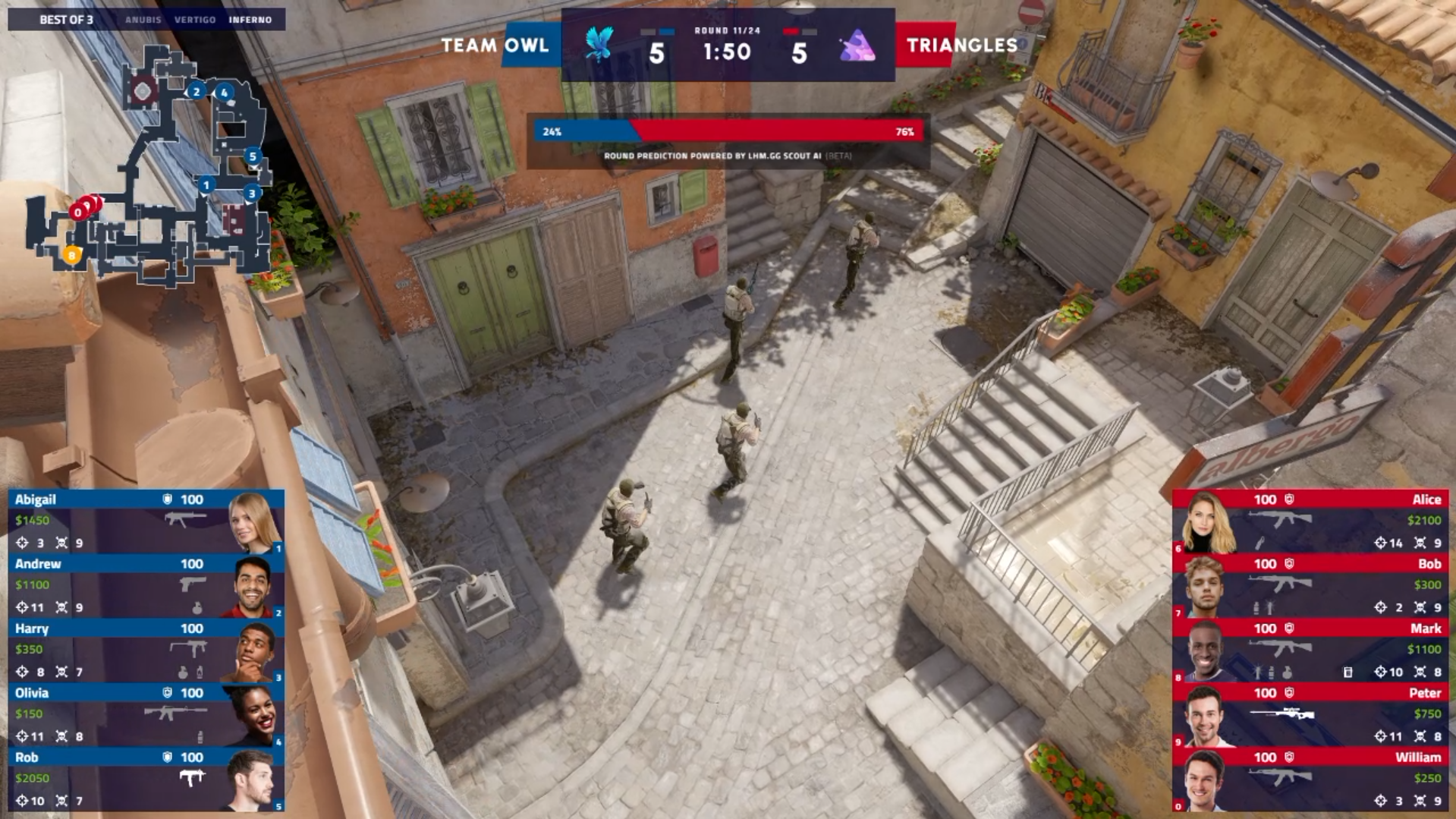
Alongside round-opening cinematics, Action Cinematic supplies paths during rounds, around situations such as smoke setups, taking areas, bomb defusals, and explosions. It is part of Scout Cinematic and can be switched off separately.
That gives you a choice over the style of coverage. You can keep the camera paths for round openings or include them during play, depending on what suits your broadcast.
Scout Predict: round and match predictions
Scout Predict adds predictions about the outcome of each round and the match as a whole. These give viewers another way to follow the situation and commentators another talking point as the game unfolds.
Prediction graphics have built-in support in CS2 Ultra HUD and CS2 Premium HUD. Choose a plan that includes the HUD and prediction display you want to use.
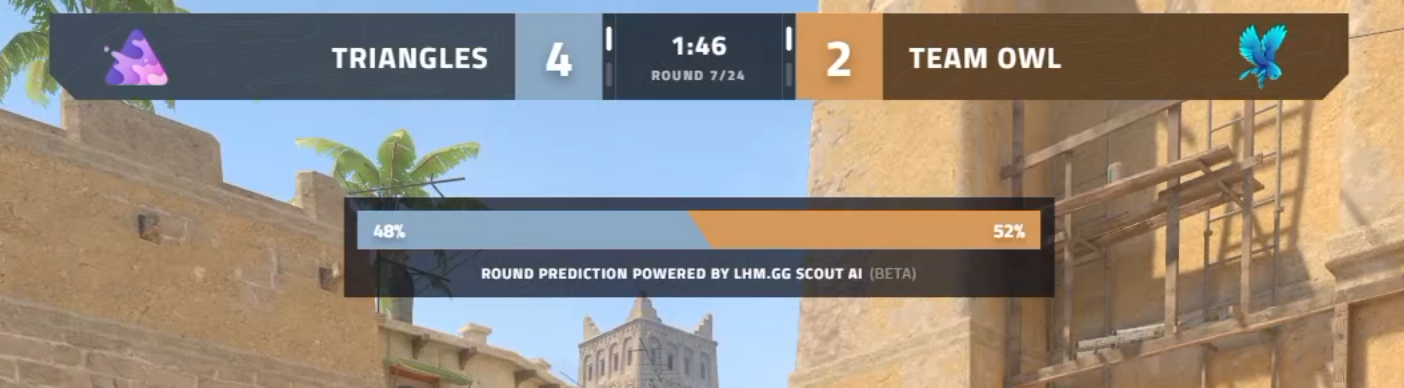
You can also use predictions alongside manual observing. Vision, Cinematic, and Predict have separate controls, so you can choose the combination that fits your show.
What do you need to use Scout AI?
Scout runs within the LHM Windows application. You need access to a CS2 match as a spectator, LHM configured for the modules you want to use, and a plan with available Scout hours. Scout Cinematic also requires Direct game control mode and compatible server settings.
Scout AI is included in Personal, Professional, and Enterprise plans, with the following monthly hours:
- Personal: 5 hours per month.
- Professional: 30 hours per month.
- Enterprise: 12 hours per month, per seat.
Plan your usage around the matches you want to cover and any testing beforehand. If you need more time, you can purchase additional Scout AI hours through your LHM account. You can also compare LHM plans to choose the HUDs and other features your production needs.
If you already broadcast CS2 through LHM, Scout fits into that existing workflow. For a first-time setup, the User Guide linked below covers the game and server requirements.
Stay in control when the show needs a specific view
Automation can handle regular observing while you make the editorial choices. Hold a player's POV for a caster's explanation, follow a producer's cue, or leave a cinematic shot when you want to show the action differently.
With Manual Takeover switched on for the relevant module:
- Scout Vision: A manual player switch turns Vision off. To return to automated observing, simply turn Vision on again when you are ready.
- Scout Cinematic: Changing the player's POV stops cinematic camera paths for the remainder of the round. Cinematic resumes automatically at the start of the next round.
This lets you keep a deliberate shot on screen without abandoning automation for the rest of the match. Try the handover with your chosen modules before the show so you know how it feels to move between automated and manual coverage.
How to get started with Scout AI
Once LHM and CS2 are configured for your chosen modules and match data is coming through, using Scout is straightforward:
- Open the Scout AI tab in LHM.
- Turn on Vision, Cinematic, or Predict, depending on what you want to use.
- Watch the output and try manual takeover before your first broadcast.
The Scout AI User Guide covers first-time configuration, control modes, and game or server requirements. Use it for the technical steps, then choose your modules from the Scout controls.
Frequently asked questions
Do I need all three Scout modules?
No. Use Vision for automated player-view selection, Cinematic for camera paths, or Predict for result predictions. You can run the combination your broadcast needs.
Do I need LHM Replays to use Scout?
No. LHM Replays is a separate feature that captures clips for replay playback. Scout handles observing, cinematics, and predictions. You can use them together when you want both live coverage and replays.
Can I use Scout Predict with a custom HUD?
The prediction display needs to be supported by that specific HUD. If you use a bespoke overlay, check with the team responsible for it. The LHM.gg team can also review the possibility of adding Scout Predict to your custom HUD, even if it was originally developed by another provider. Built-in support is available in LHM's CS2 Ultra and Premium HUDs, subject to your plan.
Can I get more Scout hours?
Yes. If you need more time beyond your included monthly budget, you can purchase additional Scout AI hours through your LHM account.
Bring Scout into your next CS2 broadcast
Choose the part of observing you want to automate, turn on the relevant modules, and see how they fit your show. Take a closer look at Scout AI and put it to work on your next CS2 broadcast, with manual control available whenever you want a deliberate shot.